Android Intents Explained – Complete Guide to Navigation and Data Passing (Kotlin & Java)
Learn Android Intents with clear examples. Understand explicit and implicit intents, navigation between activities, and passing data in Kotlin and Java.

Introduction
So far, we have learned:
-
Activity
-
Fragment
-
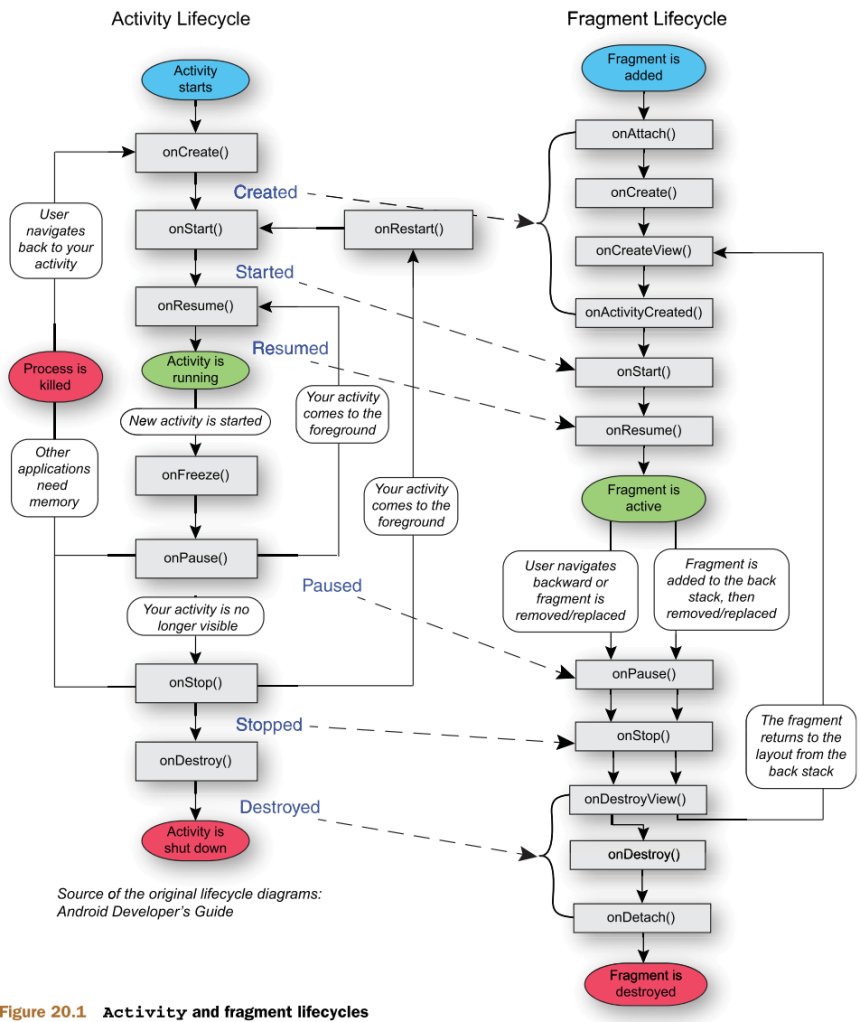
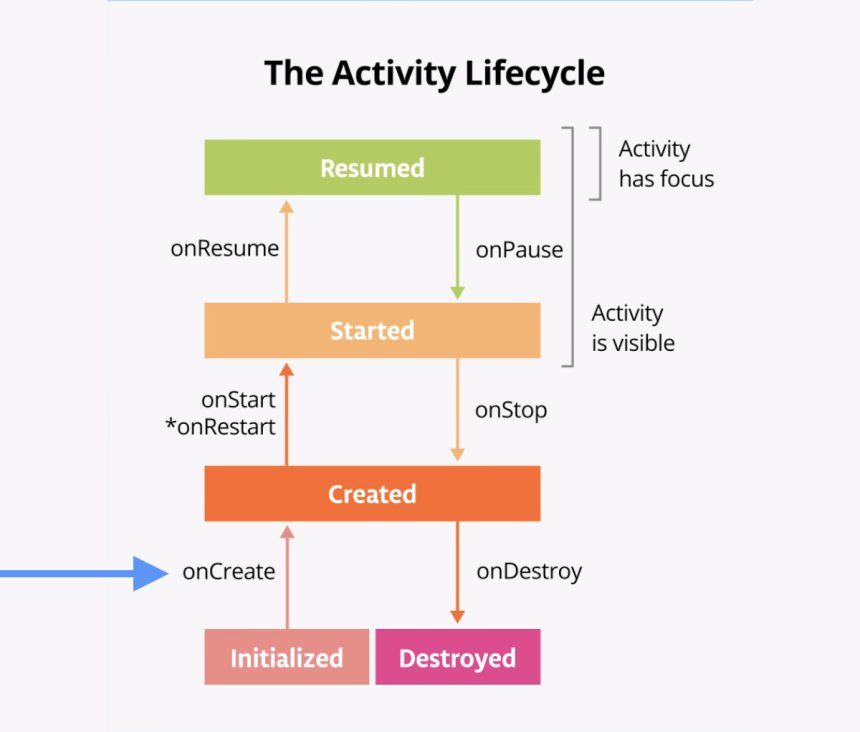
Lifecycle
-
Context
Now comes one of the most practical concepts in Android:
👉 Intents
If Activity is a screen, then Intent is the message that tells Android:
“Open this screen.”
Or
“Perform this action.”
Without Intent, navigation in Android would not exist.
What is an Intent?
Intent is a messaging object used to request an action from another component.
In simple words:
Intent = Instruction to Android system.
Example instructions:
-
Open another Activity
-
Open camera
-
Open browser
-
Share text
-
Dial a phone number
Types of Intents
There are two main types:
-
Explicit Intent
-
Implicit Intent
Let’s understand both.
1. Explicit Intent
Explicit Intent is used when you know exactly which Activity you want to open.
Example:
Login screen → Dashboard screen
Kotlin Example:
startActivity(intent)
Java Example:
startActivity(intent);
This directly tells Android:
“Open DashboardActivity.”
Real Flow (Explicit Intent)
↓
Intent created
↓
startActivity()
↓
DashboardActivity opens
Simple and direct.
2. Implicit Intent
Implicit Intent is used when you don’t specify exact component.
Instead, you describe the action.
Example:
-
Open browser
-
Open dialer
-
Share content
Android decides which app can handle that action.
Example – Open Browser
Kotlin:
intent.data = Uri.parse("https://google.com")
startActivity(intent)
Java:
intent.setData(Uri.parse("https://google.com"));
startActivity(intent);
Android will open default browser.
Example – Open Dialer
intent.data = Uri.parse("tel:9876543210")
startActivity(intent)
This opens phone dialer.
Explicit vs Implicit Intent
| Feature | Explicit Intent | Implicit Intent |
|---|---|---|
| Target known | Yes | No |
| Used inside app | Mostly | Rare |
| Used for external apps | No | Yes |
| Example | Open Activity | Open browser |
Passing Data Between Activities
Very common real-world requirement.
Example:
LoginActivity → Send username to DashboardActivity.
Sending Data (Kotlin)
intent.putExtra("username", "Ravi")
startActivity(intent)
Receiving Data (Kotlin)
Inside DashboardActivity:
Sending Data (Java)
intent.putExtra("username", "Ravi");
startActivity(intent);
Receiving Data (Java)
Real Production Example – POS App
Example:
Billing screen → Pass bill ID to Payment screen.
PaymentActivity retrieves it:
This is how screens communicate.
Intent Flags (Advanced but Important)
Flags control behavior.
Example:
Common flags:
-
CLEAR_TOP
-
NEW_TASK
-
SINGLE_TOP
Used to manage back stack.
Starting Activity for Result (Important Concept)
Sometimes you want data back.
Example:
Open AddProductActivity → Return product data.
Old method (deprecated):
Modern approach:
Use Activity Result API.
Recommended for production apps.
Intent Filters (Manifest)
Implicit Intent requires intent-filter in Manifest.
Example:
<action android:name="android.intent.action.VIEW"/>
<category android:name="android.intent.category.DEFAULT"/>
</intent-filter>
This tells Android:
“My app can handle this action.”
Common Beginner Mistakes
❌ Forgetting to register Activity in Manifest
❌ Using wrong key name in putExtra
❌ Not checking null when receiving data
❌ Misusing flags
Always double-check keys and lifecycle.
Interview-Level Answer
If interviewer asks:
“What is Intent in Android?”
Professional answer:
Intent is a messaging object used to request an action from another app component. It is used for navigation between activities and communication with external applications.
Simple Summary
Intent = Message.
Explicit Intent → Open known screen.
Implicit Intent → Request action from system.
Extras → Pass data.
Once you understand Intent, you can build navigation easily.
Conclusion
Intents are the backbone of Android navigation. Whether you build a small app or a large-scale POS system, navigation between screens depends on Intents.
Mastering Intents allows you to:
-
Build multi-screen apps
-
Communicate between components
-
Interact with other apps
This is a fundamental Android concept.
Share
What's Your Reaction?
 Like
0
Like
0
 Dislike
0
Dislike
0
 Love
0
Love
0
 Funny
0
Funny
0
 Angry
0
Angry
0
 Sad
0
Sad
0
 Wow
0
Wow
0